In this tutorial, you’ll learn how to export lists from QuickBooks Online.
Quick Instructions:
Export Customer, Employee & Vendor lists:
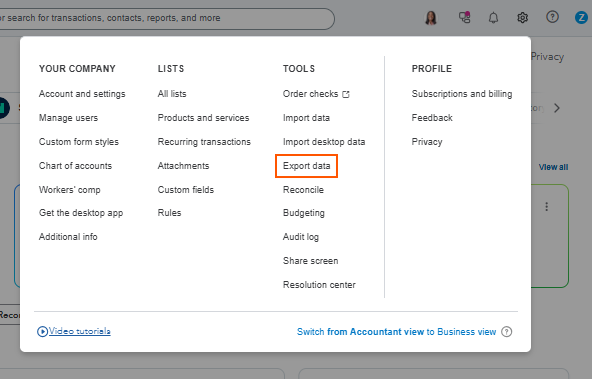
- Click the gear icon in the upper right corner
- Under TOOLS click Export data
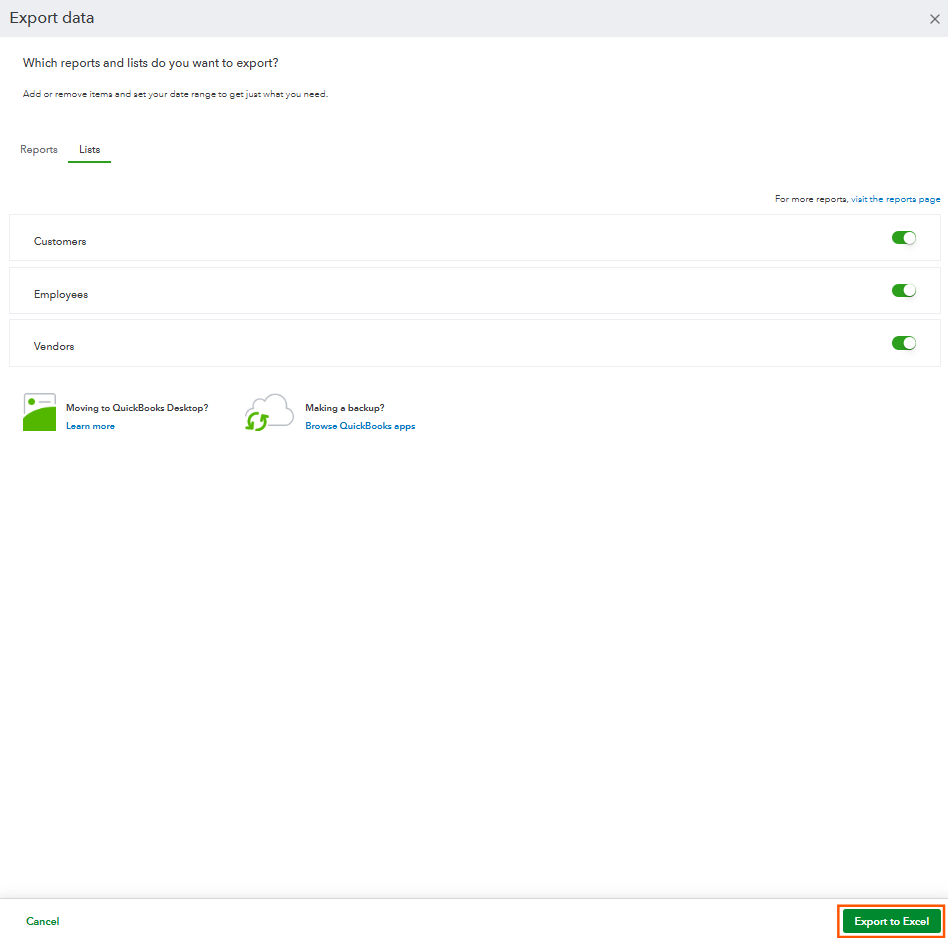
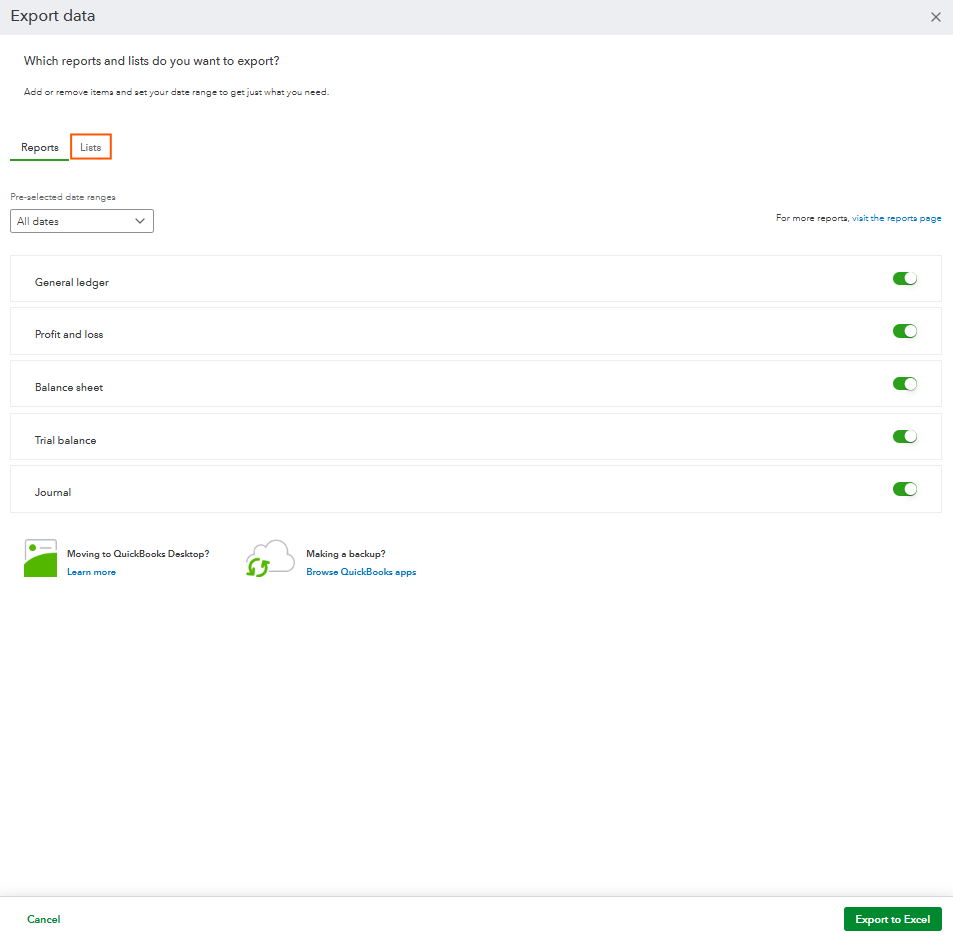
- Click the Lists tab
- Select the lists you want to export
- Click Export to Excel
Export the Chart of Accounts:
- Click Accounting -> Chart of accounts
- Click the Run Report button on the right
- Click the export icon (box with an arrow)
- Click Export to Excel
Export Products & Services Lists:
- Click the gear icon in the upper right corner
- Under LISTS click Products and services
- Click the export icon (box with an arrow)
Keep reading for a complete walkthrough with screenshots:
Export Customer, Employee & Vendor Lists
To begin click on the gear in the upper right corner. Under TOOLS select Export data.
When the Export data screen opens you’ll be on the Reports tab. Click over to Lists.
In the lists tab, you have the option to export:
- Customers
- Employees
- Vendors
To the right toggle which lists you’d like to export then click the Export to Excel button.